
A dot is a personal agent in ChatGPT that can take on ongoing work, use connected apps, and delegate tasks to Work or Codex. You choose who can use dots and which capabilities they can access. Members connect their accounts and tell their dots what to work on.
For detailed settings, see Manage dots in ChatGPT workspaces. The privacy, security, and safety FAQ covers data handling and approvals.
Find what you need
| If you need to… | Start here |
|---|---|
| Give a group access | Set up dots for work |
| Choose which data and tools a dot can use | App access and computer capabilities |
| Set up Slack | Slack connections and dot identities |
| Understand background work and approvals | Actions and ongoing work |
| Track usage or investigate an action | Models and usage and Data and compliance |
| Remove access when someone changes roles or leaves | Manage access changes |
Set up dots for work
1. Configure role-based access
Workspace owners manage access through workspace defaults and custom roles. To give selected groups access, keep the workspace default off and assign a custom role to those groups. Check every role assigned to a member: if one role grants access, turning it off in another role won’t remove it.
Review these permissions in Permissions:
-
Use dots: Allow members to use dots.
-
Add dots to Slack and Microsoft Teams: Allow members to connect their dots to supported messaging channels where available.
-
Allow local computer access: Allow dots to use a member’s local computer.
-
Use custom rules for dots: Allow members to add or edit rules for their dots.
For role creation, assignment, and access checks, see the role-based access control guide.
-
Open Admin Console > Permissions.
-
Under Permissions > Workspace default > Workspace capabilities, enable Use dots (Beta) if it should be available by default; otherwise grant access through a custom role.
-
Set Slack participation and custom dot rules. Local computer access requires a separate admin opt-in; review local computer access setup before enabling it.
-
Under Let agents use cloud computers, review Use a browser, Allow network access, and Allow computer use where your policies allow browsing websites, accessing online services, and interacting with apps. Review both workspace defaults and custom roles.
-
Under Workspace capabilities, set Use password manager according to your workspace policy.
-
Save, then check access for an intended member.
When you enable dots, you may be asked to turn on cloud computer capabilities that are still off. Dots, Work Cloud, and team automations share these permissions. Choose the capabilities your organization’s policies allow.
To review them later, go to Admin Console > Permissions > Workspace default > Workspace capabilities > Let agents use cloud computers. Local computer access is a separate opt-in.
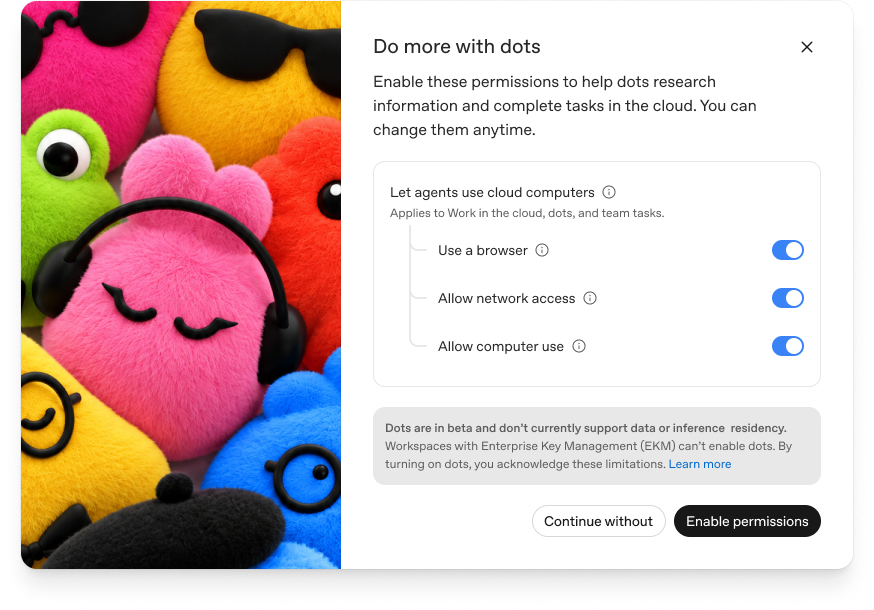
Members still need to complete Slack and local-computer setup after you enable access. Supported app connections they’ve already set up may be available to their dot.
2. Configure app access
Dots can use supported ChatGPT app connections. When setting up access, check:
- Which apps members can use. Set available apps and allowed actions in Plugin controls.
- What the connected account can access. Check the account’s permissions in the source app. Enabling dots doesn’t give it access to every shared drive, channel, or document.
- When approval is required. An app can be available while some actions still need approval. See app permissions for the options.
For example, permission to read a document may not include editing or sharing it. To restrict access to a particular source, check the connected account and app permissions.
3. Configure communication channels
Members can connect Slack to their dot in two ways:
| Setup | Member experience | What to configure |
|---|---|---|
| Connect the member’s Slack account through Plugins | Members talk to their dot in ChatGPT. It can use their Slack connection without having its own Slack identity. | Slack plugin access, the connected account, allowed actions, and approvals. |
| Give the dot its own Slack identity | The owner can message or mention the dot in Slack, and its posts are visible to people in that conversation. | Dots messaging permission, Slack app approval, and each member’s dot setup. |
Turning off a dot’s Slack identity doesn’t remove its access through the member’s connected Slack account. Check both when removing Slack access. For member setup, see Messaging.
Before members connect their dots to Slack
-
ChatGPT workspace owner: Enable Use dots and Add dots to Slack and Microsoft Teams for the intended members through workspace defaults or custom roles.
-
Slack workspace owner or app manager: Ensure the ChatGPT app is installed in Slack. Approve app requests if required by your workspace. See Slack’s app approval guidance.
-
Each member: Connect your dot to Slack from its profile. See Message your dot in Slack.
Enabling the ChatGPT permission does not install an app in Slack or connect a member’s dot.
Available admin controls
| Area | Admin capability |
|---|---|
| Access to dots | Grant or revoke dots access through workspace permissions. |
| Cloud and connected local computers | Control Use a browser, Allow network access, Allow computer use, Use password manager, and local-computer access. |
| Messaging and participation | Enable or disable Slack participation. |
| Connected apps | Set available apps and allowed actions through Plugin controls. |
| Custom dot rules | When disabled, members cannot add or edit custom rules, and saved rules do not apply. |
| Models | Enterprise model controls and defaults do not apply to the main dot. Review delegated Work and Codex tasks separately. |
Review availability and data requirements
Before enabling dots, review current availability in Getting started with your dot and the workspace notices shown during setup. If your organization requires data or inference residency, Enterprise Key Management, or specific compliance coverage, confirm support for dots with your account team before enabling access.
Check requirements for the dot itself, tasks it delegates to Work or Codex, and any connected computer. For cloud browser, network, and computer use, see cloud security. For work on employee devices, see local computer access.
Dots FAQ
Access and eligibility
Does access to dots grant access to apps and websites?
No. Dots access does not grant access to apps or websites. App connections require authorization; website work uses the browser’s signed-in account.
Whose account does a dot use for connected work?
For apps, a dot uses the connected account. For websites, it uses the account signed in to the cloud browser. Check the permissions for each account. See Managing app accounts.
Can a dot use a local computer, VPN, or existing sign-in?
A dot’s cloud computer is separate from a member’s local computer. Local work requires a connected, online computer with ChatGPT open and access enabled. Local sign-in, VPN access, and device policies do not automatically extend to the cloud computer.
How do cloud policies affect local computer access?
If any cloud policy has enforce_residency enabled, local computer access is unavailable for dots. Work Cloud remains available. See the local-access safeguard for the policy requirements.
Actions and ongoing work
Can a dot keep working when the user is away?
Yes. Members can assign ongoing responsibilities. Workspace permissions and approval rules still apply. Local work requires the computer to stay online with ChatGPT open and access enabled.
Proactive research uses restricted tools to read connected apps. It cannot send messages, change content, or control a browser or computer. To act on what it finds, the dot needs the user’s authorization and the required permissions and approvals.
Who can message a dot or see its results?
Only the owner can direct their dot through a Slack direct message or supported channel mention. Messages from other people do not start work.
A dot may use other participants’ messages as context when its owner brings it into a Slack thread. Anyone with access to the conversation can see its posts. Information from another channel doesn’t give the dot permission to share it with a new audience. Check recipients before posting work content.
Microsoft Teams access is limited to an invite-only alpha.
Does a dot always ask before sending or changing something?
Auto-review checks proposed actions against the user’s instructions, custom rules, and safety requirements. Asking a dot to draft a message doesn’t give it permission to send it. See app permissions for approval options.
How do admins revoke dots access?
See Manage access changes for steps to remove access and check connected accounts, computers, and ongoing work.
How do custom rules affect confirmations?
Custom dot rules guide when a dot acts or asks for confirmation. If you turn them off, members can’t add or edit rules, and saved rules won’t apply. The dot still follows default rules and the user’s instructions.
Custom rules don’t grant tool access or override workspace permissions and built-in safety requirements. Turning them off also doesn’t make the dot ask before every action. Check capability and app approval settings to control what it can do.
What safeguards help protect work done by dots?
Built-in safeguards help defend against malicious instructions and can pause or stop work when monitoring detects a safety concern.
Members can follow progress in Activity View, redirect work, and check results before using them.
Models and usage
Do existing model controls and defaults apply to dots?
Enterprise model controls and defaults do not apply to the main dot. Tasks it delegates to Work or Codex follow those products’ permissions and controls. Check dots permissions and the settings for Work and Codex when configuring access.
How should admins monitor adoption and usage?
Use the Analytics API to see who is using dots. Tasks a dot starts or manages in Work or Codex count toward those products’ usage limits and appear in their reporting. Include those tasks when reviewing usage, and check current plan terms when setting budgets. See Work usage and cost for the available controls.
The daily usage endpoint /v1/analytics/workspaces/{workspace_id}/usage identifies dots with client_id = DOTS and supports per-user or workspace-level reporting.
Data and compliance
OpenAI does not use ChatGPT Enterprise data to improve its models by default. For OpenAI’s business data commitments, see Enterprise privacy.
What does a dot remember between requests?
A dot keeps its own context, separate from ChatGPT Memory. Turning off ChatGPT Memory stops memory sharing with the dot, but doesn’t erase information it already has. Disconnecting a plugin stops future access through that connection; it doesn’t remove information the dot has retained.
Deleting a dot removes its own context. Files, Codex threads, and ChatGPT conversations it created are stored separately and aren’t all deleted with it. Follow the deletion steps for each location.
See the dots privacy FAQ for what is retained and deleted, and Getting started with your dot for the member’s Pause and Reset controls.
How can admins investigate work a dot has done?
Members can follow their dot’s work in Activity View. Admins can use Compliance API records to investigate user messages and dots’ replies. Check which records are available before relying on exports for an audit, DLP, legal hold, or e-discovery.
Supported dots records are available through the Compliance Logs Platform, including user prompts and responses, supported tool-call events, and connected-app MCP calls and results. Records identify the user and workspace; dots-attributed records use client_id = DOTS, and the agent object includes the dot ID, name, and type when available.
Workspace owners or admins can select their workspace in Admin Console, then open Credentials > Admin keys and create a key with the appropriate available permissions: enterprise.analytics.usage.read for unified usage reporting, or CODEX_LOG access for dots compliance records. Only workspace owners can grant broad compliance or Conversation messages access where supported. Use the Admin API reference to list and download compliance JSONL files and select records with client_id = DOTS.
Manage access changes
When someone changes roles or leaves, check their dot’s permissions, connections, and ongoing work:
- Remove dots access. Check the workspace default and every role assigned directly or through groups. Remove each permission that grants access; any remaining grant can keep it enabled.
- Check connected accounts and devices. Review plugin authorizations, website sessions, local computer access, and the dot’s Slack identity. Each has its own settings.
- Decide what happens to ongoing work. Check active tasks, recurring schedules, and tasks delegated to Work or Codex. Decide what should stop and who should take over any remaining responsibilities.
- Delete data where needed. Access changes and deletion are separate steps. Follow the deletion process for the dot’s context and any files or tasks stored elsewhere.
For adding and removing workspace members, see User lifecycle management. For dots access removal, see Manage dots in ChatGPT workspaces.
Respond to an unexpected action
Ask the member to pause their dot and review the affected task. Save the task link and available activity records, check the app or computer permissions involved, and follow your organization’s incident process. Whether you can undo an action depends on the action and the service. See the privacy and safety FAQ for how to report an issue.
Help members work well with dots
Help members choose work to delegate and connect the accounts and tools they’ll need. Encourage them to tell their dot what to do, when to do it, and who should see the result.
For example, “Prepare a weekly project update for me to review” asks for a draft. “Post the approved update in our team channel every Friday” also gives permission to post. Members should check important results and know how to review activity, change a schedule, and pause their dot. Share Getting started, Tasks and memory, and Controls to help them get started.