
Run a first scan of a connected GitHub repository with Codex Security Cloud, then review its findings. Afterward, you can enable monitoring for new commits.
Codex Security Cloud runs scans in Codex cloud. For scans of a local repository in the desktop app or CLI, use the separate Codex Security plugin.
Before you start
Use a workspace with Codex Security Cloud access and Codex cloud set up. You need permission to connect the GitHub repository you want to scan. You can create its cloud environment during setup.
If the plugin is unavailable, check access with your workspace administrator. If a repository is missing, use Configure access in the repository picker to check the GitHub app’s organization and repository access. If you can’t grant access yourself, ask your GitHub administrator to add the repository.
1. Install and open the plugin
- Open Plugins in ChatGPT on the web or in the desktop app.
- Search the plugin marketplace for Codex Security Cloud.
- Install and enable the plugin, then open Security Cloud from your installed plugins or sidebar.
2. Connect GitHub
Confirm that Codex cloud is set up for your workspace. In the plugin, select Scan. If prompted, select Connect GitHub and sign in with your own GitHub account. Each person who starts scans needs their own connection and access to the repository.
Codex Security Cloud doesn’t support workspace connections.
3. Start a repository scan
- In New Scan, choose the repository.
- Review the environment. Auto creates an environment when you start. Use Customize to choose an existing environment. See Codex cloud environments for setup details.
- Under Scan Method, select One-Time Scan.
- Select Create.
Open the scan in Scans to follow progress. Wait for it to finish, then check the reported status and target before interpreting its findings. If it fails or is canceled, read the available output as an incomplete review.
4. Review findings and available fixes
Open Findings. Use Open findings to review findings with a New, Triaged, or In Progress status. Search the list or use Filters to narrow the results. The Severity and status chart summarizes the matching findings.

Filter and review open findings. Repositories, findings, and counts are fictional.
Open a finding from the scan or from Findings. Check its affected code and revision, the path an attacker could take, and the validation evidence. Read any unresolved assumptions before deciding whether the issue applies. A scan with no reported findings doesn’t establish that the repository has no vulnerabilities.
When a repository finding offers Fix with Codex, selecting it starts a Codex conversation to check the finding against current code, implement a fix, and run relevant tests. Review the resulting changes and test evidence there.
Findings from commit monitoring can instead offer a suggested patch. Review that patch before selecting Create draft pull request. These actions have different effects, so follow the workflow shown for the finding.
5. Monitor new commits
Once you’ve reviewed the first scan, you can monitor changes as new commits arrive:
- Select Scan, then choose the repository and review the environment.
- Under Scan Method, select Continuous Scanning. Codex Security scans the repository’s default branch.
- Choose Scan commit history from. Longer windows provide more context, but the initial scan takes longer.
- Optionally add threat model scoping guidance.
- Select Create.
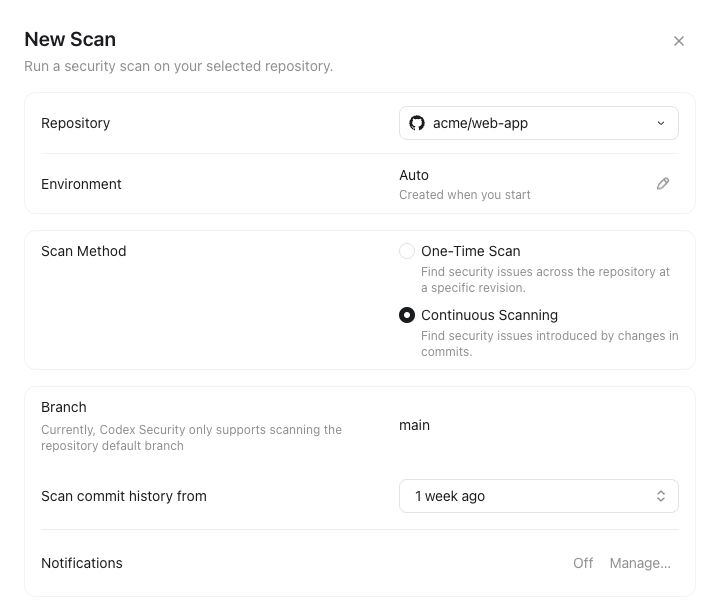
Configure continuous scanning. The repository shown is fictional.
To adjust monitoring, open Repositories, select the repository, and open Monitoring settings. You can change the Cloud environment, choose how many days of history to review, and pause or enable monitoring. Select Save to apply changes.
The scan owner, people granted edit access, and Codex Security administrators can change monitoring settings. Changes, including pausing monitoring, apply to that repository’s shared configuration in the workspace, not just to the person making the change. If you can’t edit it, ask the scan owner or a Codex Security administrator.
Review the generated threat model in Monitoring settings and update it with deployment or security context the code doesn’t establish. See Improve the threat model.
For questions about builds, validation, or result interpretation, see the Cloud FAQ. To review GitHub pull requests, use Security Review.